Have you ever noticed yourself typing same words in phrases over and over again in your forum messages and blog comments?
MyWords is a handy extension that helps save your time by making your favorite words and phrases always available just a few mouse clicks away.
+ Save any number of your favorite words and phrases, use xml import and export functionality to transfer your word database between computers.
+ Select the phrase you just typed and use right mouse click to access "MyWords" menu and add it ("+") to your favorite words database.
+ Right mouse click in any text input area and select one of your saved words to paste at current cursor position.
+ Use shortcut (default Alt+W, can be changed by using setup screen) to either:
- at a start of a input line: paste the last favorite phrase you have just used again,
- or, after you typed first few letters, auto complete your phrase with one best fitting from your saved phrases database.
Works with Firefox: 1.0+ – 3.7a4pre
Updated March 26, 2010
Developer Kitya Karlson
Homepage http://www.karlson.ru/firefox/
Download Link
Monday, April 12, 2010

Image Zoom - Firefox Plugin
Adds zoom and rotation functionality for images
Easily zoom in, zoom out, fit image to screen or set custom zoom on individual images within a web page. All this can be done by using the context menu or a combination of mouse buttons and scroll wheel. Handy to see the finer details of smaller pics or to make very large pics fit within your screen.
Image Rotation will allow you to rotate an image +90,-90,180 degrees from the context menu.
All this control is customizable from the preferences
Works with Firefox: 3.0 – 3.6.*
Updated February 9, 2010
Developer Jason Adams
Homepage http://imagezoom.yellowgorilla.net/
Download Link
Easily zoom in, zoom out, fit image to screen or set custom zoom on individual images within a web page. All this can be done by using the context menu or a combination of mouse buttons and scroll wheel. Handy to see the finer details of smaller pics or to make very large pics fit within your screen.
Image Rotation will allow you to rotate an image +90,-90,180 degrees from the context menu.
All this control is customizable from the preferences
Works with Firefox: 3.0 – 3.6.*
Updated February 9, 2010
Developer Jason Adams
Homepage http://imagezoom.yellowgorilla.net/
Download Link
pwgen - Password Generator - Firefox Plugin
pwgen, stands for "password - generator". Upon install, a small 'P' icon will show up in the statusbar of your browser.
1. One click on the icon and a password is instantly generated, shown and copied into your clipboard (all using default settings)
2. Wanting to custom your options, right click on the icon and select "Options..."
-- Added locales for French, Italian and German
Want to help translate, visit http://pwgen.alouche.net/translate/
Works with Firefox: 1.5 – 3.7a4pre
Updated April 3, 2010
Developer Ali Abbas
Homepage http://pwgen.alouche.net/
Download Link
1. One click on the icon and a password is instantly generated, shown and copied into your clipboard (all using default settings)
2. Wanting to custom your options, right click on the icon and select "Options..."
-- Added locales for French, Italian and German
Want to help translate, visit http://pwgen.alouche.net/translate/
Works with Firefox: 1.5 – 3.7a4pre
Updated April 3, 2010
Developer Ali Abbas
Homepage http://pwgen.alouche.net/
Download Link
Flagfox Firefox Plugin
Flagfox is an extension that displays a flag icon indicating the current webserver's physical location. Knowing where you're connected to adds an extra layer of awareness to your browsing and can be useful to indicate the native languages and legal jurisdictions that may apply. Additional information can be obtained via a multitude of external lookups and users can add their own custom actions. All actions can be added to the flag icon's context menu and set to icon click or keyboard shortcuts for quick access.
Clicking the flag icon loads our default action, Geotool, which gives a detailed map showing the city the server is in and other useful information such as its local time and ISP. Many other actions are available for a wide range of uses such as:
* Site safety and malware checks
* Finding similar sites and reviews
* Automatic translation to your language
* SEO and web development research
* Diagnostics like pings and traceroutes
* Whois and DNS information
* Page code validation
* Quick URL shortening
* Copying a server's IP address or other info
* or you can create your own custom actions!
Flagfox is simple, unobtrusive, and uses relatively little resources. In order to protect your privacy, country lookups are done locally rather than asking an external server about every page you browse to. It works by accessing an internal IP address location database, basically a rough map of the physical layout of the Internet, based on data provided by Maxmind. This gives a flag for the nationality of the actual location of the server you're connected to, rather than just the nationality of the domain name which may be different. Flagfox updates are provided on a monthly basis to keep this internal database accurate.
Works with Firefox: 3.0 – 3.7a4pre
Updated March 10, 2010
Developer Dave.G
Homepage http://flagfox.net/
Download Link
Clicking the flag icon loads our default action, Geotool, which gives a detailed map showing the city the server is in and other useful information such as its local time and ISP. Many other actions are available for a wide range of uses such as:
* Site safety and malware checks
* Finding similar sites and reviews
* Automatic translation to your language
* SEO and web development research
* Diagnostics like pings and traceroutes
* Whois and DNS information
* Page code validation
* Quick URL shortening
* Copying a server's IP address or other info
* or you can create your own custom actions!
Flagfox is simple, unobtrusive, and uses relatively little resources. In order to protect your privacy, country lookups are done locally rather than asking an external server about every page you browse to. It works by accessing an internal IP address location database, basically a rough map of the physical layout of the Internet, based on data provided by Maxmind. This gives a flag for the nationality of the actual location of the server you're connected to, rather than just the nationality of the domain name which may be different. Flagfox updates are provided on a monthly basis to keep this internal database accurate.
Works with Firefox: 3.0 – 3.7a4pre
Updated March 10, 2010
Developer Dave.G
Homepage http://flagfox.net/
Download Link
WebMail Notifier Firefox Plugin
WebMail Notifier checks your webmail accounts and notifies the number of unread emails.
You can use multiple accounts in a same host.
Currently supports
- Gmail (Gmail & Google Apps)
- Yahoo (yahoo.com, ymail.com, rocketmail.com, yahoo.co.jp)
- Hotmail (hotmail.com, msn.com, live.com)
- AOL (aol.com, aim.com, mail.com)
- Daum (daum.net, hanmail.net)
- Naver
- Nate (nate.com, empas.com)
- Paran (paran.com, hanmir.com)
- POP3/IMAP
Below sites are supported by user script.
- Facebook
- AdSense
- Twitter
- 163.com(126.com, yeah.net)
- www.gmx.net
- www.gmx.com
- freemail.web.de
- poczta.fm(poczta.interia.pl)
- www.qq.com
Works with Firefox: 1.5 – 3.7a1pre
Updated March 24, 2010
Developer Byungwook Kang
Homepage http://webmailnotifier.mozdev.org/
Download Link
You can use multiple accounts in a same host.
Currently supports
- Gmail (Gmail & Google Apps)
- Yahoo (yahoo.com, ymail.com, rocketmail.com, yahoo.co.jp)
- Hotmail (hotmail.com, msn.com, live.com)
- AOL (aol.com, aim.com, mail.com)
- Daum (daum.net, hanmail.net)
- Naver
- Nate (nate.com, empas.com)
- Paran (paran.com, hanmir.com)
- POP3/IMAP
Below sites are supported by user script.
- AdSense
- 163.com(126.com, yeah.net)
- www.gmx.net
- www.gmx.com
- freemail.web.de
- poczta.fm(poczta.interia.pl)
- www.qq.com
Works with Firefox: 1.5 – 3.7a1pre
Updated March 24, 2010
Developer Byungwook Kang
Homepage http://webmailnotifier.mozdev.org/
Download Link
WeatherBug firefox plugin
Get live, local weather conditions in Firefox with the WeatherBug extension. Featuring forecasts, radar, and severe weather alerts from WeatherBug's community of neighborhood weather stations.
Works with Firefox: 1.5 – 3.6.*
Updated May 19, 2008
Developer Justin Dearing
Homepage http://weather.weatherbug.com/labs/firefox-weather-extension.html
Download Link
Works with Firefox: 1.5 – 3.6.*
Updated May 19, 2008
Developer Justin Dearing
Homepage http://weather.weatherbug.com/labs/firefox-weather-extension.html
Download Link
Google Shortcuts - All Google Services at a glance
Display all of your Google Services as buttons just next to your addressbar or anywhere you like it!
You can go to settings to change which services should be available for you as buttons.
Left click on a button opens the service in the current tab, MIDDLE CLICK opens a new tab.
If you like you can change the main appearance from a Toolbar with all buttons you've selected to a single Dropdown Menu.
If you don't see any buttons:
Add the buttons on menu, view, toolbars, customize! Or install version >1.7.2 which adds Google Shortcuts automatically.
The extension is currently available in ar, ca-ES, cs, cs-CZ, da, da-DK, de-DE, en-US, eo, es-ES, es-MX, fr, fr-FR, hi-IN, hu-HU, it-IT, ja, mk-MK, nl-NL, pl, pl-PL, pt-BR, ro-RO, ru-RU, sr-RS, th-TH, tr, tr-TR, uk-UA, vi, zh-CN, zh-TW.
Download Link
You can go to settings to change which services should be available for you as buttons.
Left click on a button opens the service in the current tab, MIDDLE CLICK opens a new tab.
If you like you can change the main appearance from a Toolbar with all buttons you've selected to a single Dropdown Menu.
If you don't see any buttons:
Add the buttons on menu, view, toolbars, customize! Or install version >1.7.2 which adds Google Shortcuts automatically.
The extension is currently available in ar, ca-ES, cs, cs-CZ, da, da-DK, de-DE, en-US, eo, es-ES, es-MX, fr, fr-FR, hi-IN, hu-HU, it-IT, ja, mk-MK, nl-NL, pl, pl-PL, pt-BR, ro-RO, ru-RU, sr-RS, th-TH, tr, tr-TR, uk-UA, vi, zh-CN, zh-TW.
Download Link
Saturday, March 27, 2010
Does Mozilla support ActiveX controls? (Windows)
Mozilla does not support ActiveX controls natively. A plug-in for ActiveX controls (which also works with Netscape 4.x) is in development, with limitations: it will not download or install controls itself, and it will only host controls that are already installed and marked safe for scripting, so it is not as insecure as ActiveX normally is. The current plug-in does not yet allow controls to be scripted.
You can read about the plug-in at the Mozilla ActiveX Project.
Note that ActiveX can pose a security risk to your computer.
You can read about the plug-in at the Mozilla ActiveX Project.
Note that ActiveX can pose a security risk to your computer.
Wednesday, April 16, 2008
Firefox keyboard shortcuts
Learning to use Firefox keyboard shortcuts to reduce your trips to the mouse can lead to a much more fulfilling web browsing experience, especially at those times that your mouse just isn't doing the trick.
Okay, you got me. I have, on occasion (read: often), neglected to charge my wireless mouse for long enough that, when it's time to get posting on Lifehacker, I find myself totally mouse-less.
Now you're thinking, "What, just because this wire-hating jerk can't remember to put his mouse on the charger every now and then, I'm supposed to get all excited about the idea of using Firefox without a mouse?" But that's not it at all, people!
I'm the kind of web surfer who's never terribly happy when he has to move his hand over to the mouse, and frankly, jumping over to the mouse every time you need to follow a link is so 2004. Check out the following Firefox keyboard shortcuts (some well-known, others not), and before long you'll forget all about the little rodent next to your keyboard.
Navigation from the toolbar
The address bar shortcut should be as instinctual as breathing by now, but there's a few more shortcuts to that top bar that you should keep in mind.
- Select location bar: Ctrl/Cmd+L or Alt+D
- Select search bar: Ctrl/Cmd+K
- Back: Backspace or Alt/Cmd+Left
- Forward: Alt/Option+Right or Shift+Backspace
- Change search engine: Ctrl/Cmd+Down (Next) +Up (Previous)
The last shortcut, used to change the search engine, was a big discovery for me. I've always been interested in additional search bar plugins, but it was never worth the trip to the mouse. No problem any more.
Searching pages
The find-as-you-type feature was an epiphany. While Google is great at getting you to the right web page, Firefox's find-as-you-type feature gets you the rest of the way.
- Find as you type text: /
- Find as you type link: '
- Regular old find: Ctrl/Cmd+F
The link search is very useful, especially when used in conjunction with...
Opening pages
Unless you do all of your browsing in one page, these shortcuts are huge when you don't want to go running for your mouse.
- Open link in new window: Shift+Enter
- Open link in new tab: Ctrl/Cmd+Enter
- Open address/search in new tab: Alt/Option+Enter
Used together with their respective shortcuts (address and search bar shortcuts and the find-as-you-type link shortcut), the page opening shortcuts go a long way toward mouse-less browsing.
Grab bag
The following shortcuts fall into a more general grab bag of useful shortcuts.
- Caret browsing: F7
- Refresh: Ctrl/Cmd+R or F5
- Refresh (override cache): Ctrl/Cmd+F5 or Ctrl/Cmd+Shift+R
- Switch tabs: Ctrl/Cmd+Tab
- Select tab (1-9): Ctrl/Cmd+[1-9]
- Compose email: Ctrl/Cmd+M
The preceding shortcuts are of mostly obvious usefulness. Switching tabs and reloading pages are must-have shortcuts for any mouse-eschewing Firefox-er. A less-known feature, Caret browsing, inserts a cursor into the text of the page and is very useful for highlighting and copying text.
If you're looking to change your default mail program (e.g. to Gmail, etc.) to best utilize the Compose email shortcut, check out these tips for setting your default mail program.
So you're a web writer, huh?
If you've recently turned Firefox into a full-fledged web writer, then there are a couple more useful shortcuts that you need to know.
- Spellcheck (with Spellbound extension): Ctrl+Shift+F7
- Save Entry (with Scribe extension): Ctrl+S
And there's so much more!
Hate the mouse and the keyboard? While I can't solve that entirely, I can suggest that you throw some very useful and time-saving Quick searches into the mix.

Keyconfig extension
Finally, if you haven't totally satisfied your shortcut cravings, you can install the Keyconfig extension. Keyconfig allows you to define Firefox shortcuts to your hearts content.
Some of the shortcuts above may be old hat, while others may be news to you. I've excluded a lot of the more obvious universal shortcuts (like copy and paste), but I tried to include everything you need to browse just as you would with a mouse in hand. Still not enough? You might want to check out the full list of Firefox keyboard shortcuts.
Any other must-have Firefox shortcuts or extensions that make the mouse-less Firefox experience that much easier? Let us know in the comments or send an email to tips at lifehacker.com
Author: Adam PashSource:http://lifehacker.com/software/feature/hack-attack-mouseless-firefox-139495.php
Wednesday, February 13, 2008
SECURE YOUR FIREFOX PASSWORDS
Always use the "Master Password" feature in Firefox.
This is very important in order to prevent some one from seeing your passwords.
If you have a good firewall no one can access your passwords via a remote computer.
So your passwords will remain safe even if you dont use a master password.
But problems may arise IF your firewall fails at an intrusion attempt.
Webpages can also use ActiveX controls to breach your browser security.
So it is recommended to always use a Master Password.
HOW TO ADD A MASTER PASSWORD?
 Go to "Tools" Select "Options"
Go to "Security" tab and check the box named "Use a Master Password"
 In the box that pops up, type the preferred master password twice.
Always use passwords that are easy to remember,
which has >10 characters,
which is a non dictionary word,
which is not a common name and
which is not the name of your ex-gf/bf.
Always use numbers in the password. If possible, add a symbol (eg: %) too.
It will take years to crack such a password.

Here are two firefox extensions which can be used to make your passwords even more secure.
Secure Log in 0.8.1.4

It works the same way as opera's wand log in.
It uses the default password manager in firefox and adds an icon to your statusbar and navigation bar.
When you reach a log in page for a stored password, the Key icon changes colour.
It can also play a custom sound file.
Now you just need to press the icon to Sign In.
This extension works in Firefox 3 Beta also.
| Code: |
| https://addons.mozilla.org/en-US/firefox/addon/4429 |
Master Password Timeout 0.2.5

By default, 300 secs (5 min) of inactivity will lock the master security device,
but this value can be adjusted in the extension manager options window.
Users can also log out of the master security device manually from the tools or context menu.
When the master security device is locked, the master password must be entered to gain access to saved passwords.
You may assign a master password in Tools > Options > Privacy > Passwords > Set Master Password.
| Code: |
| https://addons.mozilla.org/en-US/firefox/addon/1275 |
HOW TO KEEP UP WITH UR FAV SITE IN AN AUTOMATED MANNER?
Firefox has a wonderful inbuilt RSS reader. RSS readers makes it possible for people to
keep up with their favorite web sites in an automated manner that's easier than checking them manually.
I will explain how it works by an example,
Go to the site which you want to track. Click on "Bookmarks" and select "Subscribe to this page" In the new page that appears, use "Live Bookmarks" to subscribe to the feed. And press "Subscribe Now"
 Go to the your Bookmarks Menu and you can easily access the Feed by selecting its name.

HOW TO SEE THE PASSWORDS STORED INSIDE FIREFOX
Most often we use "Remember Passwords" when we log in to a website.
There's an option to view all of it together.
Go to "Tools" and select "Options" (Shortcut to this step:Alt+O) Click on "Show Passwords" In the new menu that opens up, you can see the accounts in which you have asked
firefox to remember passwords. Again Click on "Show Passwords"
 If you have enabled a master password, a new window will open up asking for it.
Enter it in the box and press "Ok" If you haven't enabled it, you wont be prompted.
 Finally a box will open up showing all the saved passwords.
Press "Hide Passwords" to hide the passwords again.

SEARCH BY JUST THREE MOUSE CLICK S IN FIREFOX
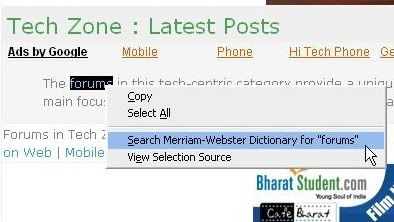
Just drag and select the text you want. Right click and select the option "Search with Google"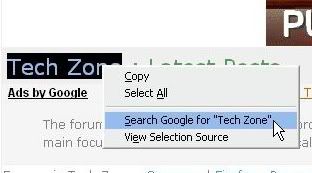 You can also change the search engine in the right click,
for that go to the search panel and change the search engine.

HOW TO ADD ANY SEARCH ENGINE TO FIREFOX
1. Open the Mozilla Addons webpage | Only RxPG members can see links here! Register or Sign In! |
2. Click on the "Search Engines" link on the left hand side of the screen. 3. In that page you will 21 popular search engines. Just click on them, Press 'Add' in the dialog box that opens up. 4. If the search engine you want is not on that list, Scroll down till you see the heading "Additional Resources" 5. Click on the Mycroft.mozdev link
 6. In the Mycroft Project page, You will see a Search box with the name "Site Name / URL:" 7. Enter the URL of the search engine you want. Eg: I want to add photobucket image search to my firefox, so i entered its URL.
 8. Press 'Search' 9. In the new page that opens up, you will see the name of the search engine, Just click on it.
 10. Press 'Add' in the dialog box that opens up.
SORT YOUR BOOKMARKS IN ALPHABETICAL ORDER IN FIREFOX
This is a simple but less known tip on how to arrange your bookmarks in alphabetical order. Open the 'Bookmarks' menu from the firefox Menu bar. Place the mouse pointer on any of your bookmark, Right Click and Click on "Sort by name"Thats it! Its done.

Tweak Firefox Looks
Compact Firefox Layout
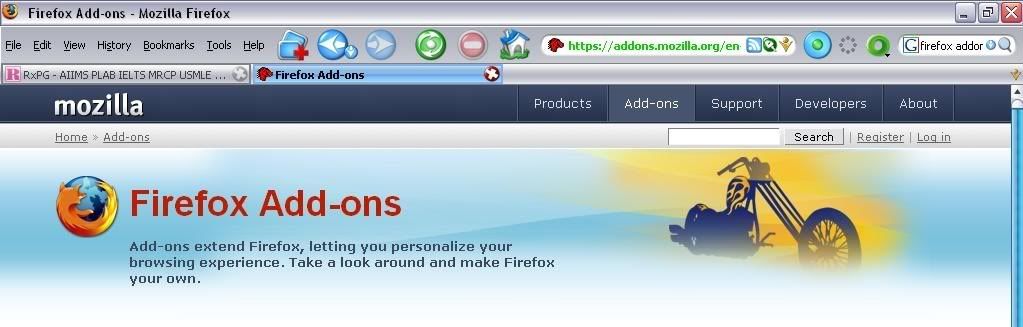 1. Go to the "View", select "Toolbars" and untick the "Bookmarks Toolbar" 2. Again go to "View", select "Sidebar" and untick any sidebar if you had enabled any. 3. Go to "View", then select "Customize"
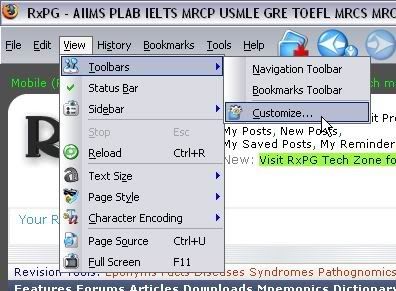 4. In the "Customize Toolbar" box which appears, select "Show" - "Icons" (not 'Icons and Text', or Text).
If you want you can also tick 'Use Small Icons'
5. Now remove every icon in the Firefox toolbar at the top of the browser which you don’t need.Eg: drag and drop the "Activity Indicator" into the "Customize Toolbar" box to remove it from the Firefox toolbar.
You can always re-add these at any time.
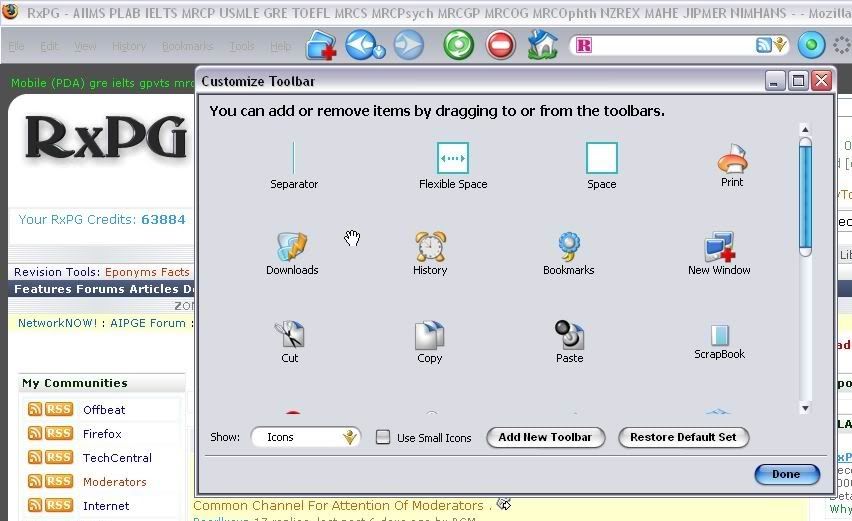 6. Now drag and drop each icon in the navigation bar(the bar below the firefox menu)
Firefox toolbar up to the top toolbar, just to the right of the 'Help' menu.
This includes the large white Address box, the Search bar. So as to have everything on a single toolbar.
7. Insert any additional icons from the "Customize Toolbar"' box into the relevant spotson the top Firefox toolbar. When finished, click the Done button.
8. Finally, go to "View" and untick the the "Navigation Toolbar" as it should now be completely empty now. 9. Thats it you are done. You can re-arrange these anytime you want.
Subscribe to:
Posts (Atom)