Showing posts with label Download Mozilla Firefox. Show all posts

Wednesday, February 13, 2008

HOW TO SEE THE PASSWORDS STORED INSIDE FIREFOX


Most often we use "Remember Passwords" when we log in to a website.
There's an option to view all of it together.

icon_arrow.gif Go to "Tools" and select "Options" (Shortcut to this step:Alt+O)

icon_arrow.gif Click on "Show Passwords"


icon_arrow.gif In the new menu that opens up, you can see the accounts in which you have asked
firefox to remember passwords. Again Click on "Show Passwords"


icon_arrow.gif If you have enabled a master password, a new window will open up asking for it.
Enter it in the box and press "Ok" If you haven't enabled it, you wont be prompted.


icon_arrow.gif Finally a box will open up showing all the saved passwords.
Press "Hide Passwords" to hide the passwords again.


SEARCH BY JUST THREE MOUSE CLICK S IN FIREFOX


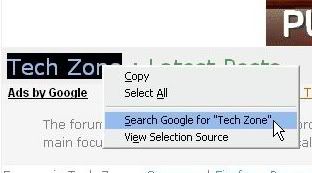
icon_arrow.gif Just drag and select the text you want.

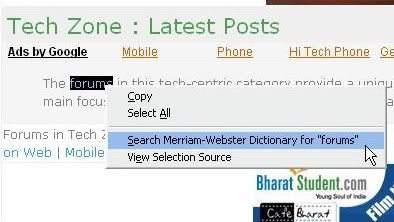
icon_arrow.gif Right click and select the option "Search with Google"


icon_arrow.gif You can also change the search engine in the right click,
for that go to the search panel and change the search engine.


Tweak Firefox Looks


Compact Firefox Layout


icon_arrow.gif 1. Go to the "View", select "Toolbars" and untick the "Bookmarks Toolbar"

icon_arrow.gif 2. Again go to "View", select "Sidebar" and untick any sidebar if you had enabled any.

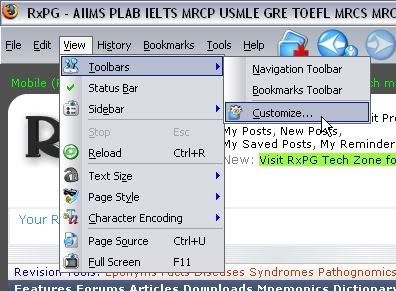
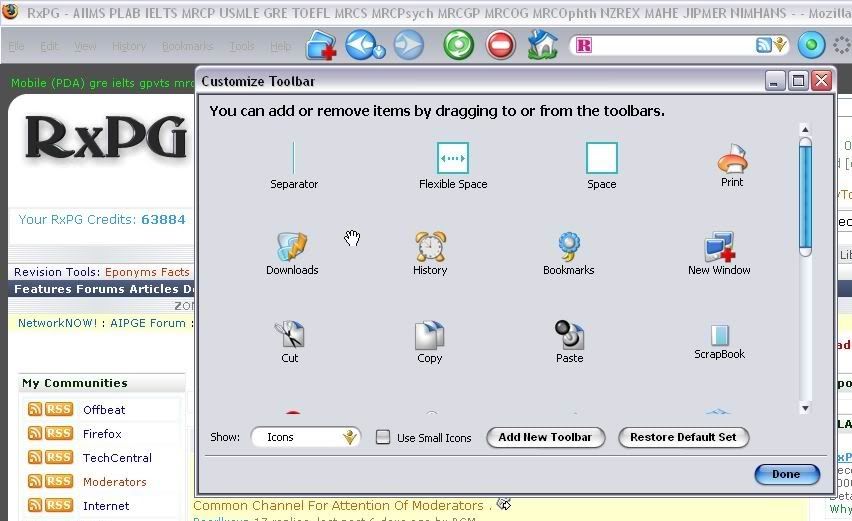
icon_arrow.gif 3. Go to "View", then select "Customize"


icon_arrow.gif 4. In the "Customize Toolbar" box which appears, select "Show" - "Icons" (not 'Icons and Text', or Text).
If you want you can also tick 'Use Small Icons'

icon_arrow.gif 5. Now remove every icon in the Firefox toolbar at the top of the browser which you don’t need.
Eg: drag and drop the "Activity Indicator" into the "Customize Toolbar" box to remove it from the Firefox toolbar.
You can always re-add these at any time.


icon_arrow.gif 6. Now drag and drop each icon in the navigation bar(the bar below the firefox menu)
Firefox toolbar up to the top toolbar, just to the right of the 'Help' menu.
This includes the large white Address box, the Search bar. So as to have everything on a single toolbar.

icon_arrow.gif 7. Insert any additional icons from the "Customize Toolbar"' box into the relevant spots
on the top Firefox toolbar. When finished, click the Done button.

icon_arrow.gif 8. Finally, go to "View" and untick the the "Navigation Toolbar" as it should now be completely empty now.

icon_arrow.gif 9. Thats it you are done. You can re-arrange these anytime you want.

Memory leaks Firefox

What is firefox "memory leaks"?

Is it another term for "memory usage"?

And how to reduce those memory leaks?


Solution:

Memory leak in firefox was a bug in version 1.xx of the browser. The term "memory leak" is a bit of a misnomer as it has nothing to do with any leak. What actually happens is that firefox fails to free the virtual memory it is no longer using for other internal purposes, hence the memory usage piles up. It has been mostly fixed in version 2.xx of the browser.

How to fix it? Simple, upgrade to version 2.0+. If you still get trouble, install something like sessions manager extension.

Ideally firefox should be using between 100 to 300 K of your PC's RAM. If you see it using more than that, then it is a leak and u gotta get a "plumber" really fast.


Friday, December 28, 2007

Mozilla Firefox is a web-browser with superior keyboard support

1) Browse with caret allows users to select arbitrary content with the keyboard and move through content as if inside a read-only editor. This allows copying arbitrary pieces of text to the clipboard. The F7 key toggles this feature on/off.

2) Tabbed browsing helps keyboard users by putting all of the browsed documents in one Firefox application window rather than cluttering the Alt+Tab order which makes keyboard navigation within the entire Windows OS much simpler.

3) Both history and bookmarks can be searched with a "quick search" field that quickly narrows the list down via a substring search.

4) Bookmarks can have a keyword assigned to them which can be typed into the address bar to bring up the bookmark. A "smart keywords" feature enhances this even further by allowing custom searches from the command line such as "word punditry" to look up the word "punditry" in an online dictionary. These smart keywords can be setup via the context menu for the search field on the desired website.

5) Integrated web search via Ctrl+K is much faster to use than first going to the search tool's web site. Custom searches can be added to this quick search bar and the user can switch between them by choosing from a drop down available via the standard Alt+down arrow key combination.

6) The built-in text zoom feature can be accessed with the Ctrl+plus and Ctrl+minus hotkeys.
The Accessibility Extension may be installed on top of Firefox, allowing keyboard access to document structure.

7) The Find Bar allows for quick navigation to links and text searching without opening a separate dialog -- this allows more convenient use by screen magnification users because there is a single point of regard for the search. It also assists users of input aids because there are far fewer keys to type to get the desired location. For example, it is possible to navigate to the desired link by pressing 2 letter keys rather than tabbing through many links to get there. Caret browsing allows you to move through web content one letter a time. You can even select web content and copy it to the clipboard. -- all with the keyboard

8) Detailed Advanced Javascript control: Mozilla gives you the ability to fine tune what Javascript is allowed to do while you browse. For example, you can disable functions that websites use to move or resize windows, or to remove your status bar, to disable right-click contextual menus, change the status bar text, etc. You can furthermore control javascript capabilities to remove scrollbars, toolbars or system buttons like minimize, close and maximize by editing the about:config related properties or by editing accordingly the user.js file as explained in this "Disable Other JavaScript Window Features" document.

9) Moving back and forward by web page (Alt+Left and Alt+Right) occurs near-instantaneously
The download manager provides keyboard access to all of your recent downloads
Operating System "Look and Feel" Support: Mozilla's default skin will match the colors and sizes currently being used in your desktop. Mozilla can follow the system appearance whether it's high or low contrast, with large or small fonts.

10) Text files used in configuration (techies only): configuration files are easily edited with any text editor. For example, prefs.js gives access to a large number of configuration options not available in the preferences window. Also, userContent.css allows users knowledgeable about cascading style sheets to customize the appearance of all pages that are displayed. Finally, bookmarks.html contains all your bookmarks, and is easy to move around from computer to computer.

11) View selection source (techies only): when you select some text and right click or press Shift+F10, you can "view selection source". This will show the HTML source for only the selected text, which is useful for understanding accessibility problems in some web sites.

Source: http://www.mozilla.org/access/features

Tuesday, December 25, 2007

Dealing with Junk E-mail Mozilla Thunderbird

Dealing with Junk E-mail
Mozilla Thunderbird supports many different methods for dealing with junk email (also known as "spam"). This document will describe the ways Thunderbird can deal with junk mail so you don't have to waste your time doing so.

Thunderbird's Junk Mail Controls
Junk mail controls can be set separately for each email account or, if using the global inbox feature, to all local folders. These are the available options for determining how Thunderbird should recognize and treat junk mail.

General Options
Do not mark messages as junk mail if the sender is in my address book prevents messages from being automatically marked as junk mail if the sender is listed in the selected address book. This is effectively a White List of contacts whose messages should never be treated as junk mail, and is often most useful when combined with the Automatically add outgoing email addresses to my Address Book option.
Trust junk mail headers set by will automatically recognize mail that is marked by a separate junk mail filtering program. Very often, your ISP or mail server will install such a filtering program, which adds special headers to your email before it is retrieved by Thunderbird. By setting this option, you do not have to create special filters to recognize these. Currently supports: SpamAssassin and SpamPal.
If SpamAssassin is selected, the filter checks the content of the X-Spam-Status and X-Spam-Flag headers, as well as whether **SPAM** has been inserted in the subject line of the message.
If SpamPal is selected, the filter checks the value of the X-SpamPal header.
Thunderbird reads the settings used to look for junk mail headers from files with a .sfd extension that are in the Thunderbird profile directory.

Handling
Determines what to do with junk mail when it is received
Move incoming messages determined to be junk mail to will automatically place junk mail into the specified folder upon arrival
Automatically delete junk messages older than will automatically empty the chosen junk folder and totally delete the messages
When I manually mark messages as Junk allows the user to determine whether to put manually-marked junk mail into the Junk folder or delete it immediately
When displaying HTML messages marked as junk, sanitize the HTML

Logging
Clicking the Junk Mail Log button brings up another option setting window that allows you to enable and disable logging of junk mail filtering, as well as view the log itself. Normally, it should not be necessary to enable logging.

Adaptive Filtering:
Thunderbird's primary method of dealing with junk mail is an adaptive filter. Thunderbird's adaptive filter actually learns how it should classify e-mail by learning from your habits.
If you consistently mark a certain type of e-mail as junk, Thunderbird will learn that that type of e-mail should be marked as spam in the future. However, e-mail that you wish to receive will not be marked as spam, because Thunderbird's filter is entirely based on your actions.
The filter improves as it watches how you sort your e-mail, and with time the filter will reach nearly 100% classification accuracy. More important, however, is that the filter is intentionally conservative in what it marks as junk mail. If Thunderbird can't quite decide whether an e-mail is junk or not, it will mark it as not spam. It's that simple -- after training, the filter simply doesn't create false positives.

Source:http://wiki.mozilla.org/Thunderbird:Help_Documentation:Dealing_with_Junk_E-mail

Thursday, December 20, 2007

Mozilla Minimo

A small, simple, powerful, innovative, web browser for mobile devices

Minimo ScreenShot images

Features

Minimo uses Mozilla Technologies to produce a highly usable web browser for advanced mobile devices. Features include:

* Fast access to your mobile content via Homebase start page

* Best support for modern web standards (Javascript and AJAX).

* Social Bookmarking

* Tab browsing

* RSS Support

* Proven security (TLS, SSL3)

* International support

* Cross platform capability

* Widget and Extension support

Download Minimo

Source:http://www.mozilla.org/projects/minimo/

Mozilla Thunderbird

Main purpose of Mozilla’s Thunderbird 2 is to organize, secure and customize your mail. Thunderbird has made email application more powerful than ever.

Keep Your Vital Information Organized

Thunderbird 2 features many new enhancements to help you better manage your unruly inbox, and stay informed. Thunderbird 2 scales to the most sophisticated organizational needs while making it easy to find what you need.

Advanced Folder Views

Advanced Folder View screenshot

Thunderbird 2 offers a variety of ways for you to organize and display your folders, whether by favorites, recently viewed or folders containing unread messages. As always, you can also set up RSS and newsgroup folders to stay on top of news and your interests. Thunderbird 2 also allows you to maximize your message view pane by opting for a folder drop down menu instead of the traditional sidebar.


Message Tagging

Message Tagging screenshot

Thunderbird 2 allows you to “tag” messages with descriptors such as “To Do” or “Done” or even create your own tags that are specific to your needs. Tags can be combined with saved searches and mail views to make it easier to organize email.

Message History Navigation

Message History screenshot

Thunderbird 2 offers message history navigation that allows you to click “forward” and “back” much like in your Web browser. You can now quickly toggle between messages and folder views.

Improved Search

Improved Search screenshot

Thunderbird 2 features a find as you type pane that speeds up searches within displayed messages. Thunderbird also offers quick search, which starts showing search results as soon as you start typing in search terms.

Saved Searches

Saved Search screenshot

Do you find yourself searching for the same subject or message content over and over? Thunderbird 2 saves you time by allowing you to store this search as a folder. Rerunning the search is just a matter of clicking on the saved search folder in the folder pane.

Stay Informed

Stay Informed screenshot

Thunderbird 2 has been updated to provide more informative and relevant message alerts containing sender, subject and message text for newly arrived messages. Folders provide a pop up summarizing new messages in that folder.

Easy Access to Popular Web Mail Services

Easy Access screenshot

Thunderbird 2 makes it even easier to integrate and use various Web mail accounts from one inbox. Gmail and .Mac users can access their accounts in Thunderbird by simply providing their user names and passwords.

Secure and Protect Your Mail

Mozilla has bolstered Thunderbird’s acclaimed security and privacy measures to ensure that your communications and identity remain safe. It’s like having your own security guard online.

Phishing Protection

Phishing Protection screenshot

Thunderbird protects you from email scams which try to trick users into handing over personal and confidential information by indicating when a message is a potential phishing attempt. As a second line of defense, Thunderbird warns you when you click on a link which appears to be taking you to a different Web site than the one indicated by the URL in the message.

Robust Privacy

Thunderbird 2 offers improved support for user privacy and remote image protection. To ensure a user’s privacy, Thunderbird 2 automatically blocks remote images in email messages.

Cutting Out the Junk

Mozilla has updated Thunderbird’s popular junk mail folders to stay ahead of spam. Each email you receive passes through Thunderbird's leading-edge junk mail filters. Each time you mark messages as spam, Thunderbird “learns” and improves its filtering so you can spend more time reading the mail that matters. Thunderbird can also use your mail provider's spam filters to keep junk mail out of your inbox.

Open Source, More Secure

At the heart of Thunderbird is an open source development process driven by thousands of passionate, experienced developers and security experts spread all over the world. Our openness and active community of experts helps to ensure our products are more secure and updated quickly, while also enabling us to take advantage of the best third party security scanning and evaluation tools to further bolster overall security.

Automated Update

Automated Update screenshot

Thunderbird’s update system checks to see if you’re running the latest version, and notifies you when a security update is available. These security updates are small (usually 200KB - 700KB), giving you only what you need and making the security update quick to download and install. The automated update system provides updates for Thunderbird on Windows, Mac OS X, and Linux in over 30 different languages.

Get Your Mail, Your Way

Thunderbird allows you to customize your email to suit your specific needs whether it’s how you search and find messages or listening to music right out of your inbox.

Outfit Your Inbox

Thunderbird users can increase Thunderbird’s functionality and appearance using hundreds of add-ons. A Thunderbird add-on can let you manage contacts, place voice over IP calls, listen to music, and keep track of birthdates all from your inbox. You can even change the appearance of Thunderbird to suit your tastes.

Message Templates

Thunderbird 2 allows you to easily set up message templates to save you time – especially if you have to send the same mail message repeatedly.

Add-ons Manager for Extensions and Themes

Add-ons Manager screenshot

The new Add-ons Manager improves the user interface for managing extensions and themes, making it even easier for you to customize Thunderbird 2. Install, uninstall, enable and disable your add-ons in a single place.

Download Thunderbird
Source: http://www.mozilla.com/en-US/thunderbird/features.html

Sunday, December 16, 2007

Firefox Shortcuts!!!

Close Tab ctrl+f4
complete .com address ctrl+enter
complete.net address ctrl+enter
complete .org address ctrl+shift+enter
open the url in a new tab alt+enter
increase or decrease text size ctrl +/- or ctrl+scrollupordown
ctrl+tab scroll thru tabs
Ctrl+n (where n is a number) Go to the nth tab
ctrl+shift+r refresh the page and clear the cache try
open any link on a page in new tab jus press ur scroll wheel..

How to recover Mozilla passwords backup. ..

Close Firefox, Then in your backed up profile folders, copy the signons.txt file to the location of your current profile folder. You should get a warning : Do you want to overwrite this file, click Yes, then start Firefox and see if your passwords are restored.

You can check by : Tools -> Options -> Security -> click "Show Passwords" and then click "Show Passwords" again and confirm the action.


Otherwise copy the whole contents of the previous folder and replace the current profile folder contents with it.

Firefox hanging problem..

Problem:
Firefox gets stuck for 5 seconds and then works normally..

Solution:
Check with a new profile.

Right click on the firefox shortcut, Properties -> target, add the -p switch. Now start firefox with that shortcut. You'll get the profile selection window, click on New Profile, and start browsing in it. See if you still get the freezes.

Note : A new profile means no extensions + themes installed (you have to install all your extensions + themes again) and also 0 cache

Wednesday, November 28, 2007

What's New in Firefox 2

What's New in Firefox 2

1) Visual Refresh: Firefox 2's theme and user interface have been updated to improve usability without altering the familiarity of the browsing experience.

2) Built-in phishing protection:
Phishing Protection warns users when they encounter suspected Web forgeries, and offers to return the user to their home page. Phishing Protection is turned on by default, and works by checking sites against either a local or online list of known phishing sites. This list is automatically downloaded and regularly updated when the Phishing Protection feature is enabled.

3) Enhanced search capabilities: Search term suggestions will now appear as users type in the integrated search box when using the Google, Yahoo! or Answers.com search engines. A new search engine manager makes it easier to add, remove and re-order search engines, and users will be alerted when Firefox encounters a website that offers new search engines that the user may wish to install.

4) Improved tabbed browsing: By default, Firefox will open links in new tabs instead of new windows, and each tab will now have a close tab button. Power users who open more tabs than can fit in a single window will see arrows on the left and right side of the tab strip that let them scroll back and forth between their tabs. The History menu will keep a list of recently closed tabs, and a shortcut lets users quickly re-open an accidentally closed tab.

5) Resuming your browsing session: The Session Restore feature restores windows, tabs, text typed in forms, and in-progress downloads from the last user session. It will be activated automatically when installing an application update or extension, and users will be asked if they want to resume their previous session after a system crash.

6) Previewing and subscribing to Web feeds: Users can decide how to handle Web feeds (like
this one), either subscribing to them via a Web service or in a standalone RSS reader, or adding them as Live Bookmarks. My Yahoo!, Bloglines and Google Reader come pre-loaded as Web service options, but users can add any Web service that handles RSS feeds.

7) Inline spell checking: A new built-in spell checker enables users to quickly check the spelling of text entered into Web forms (like this one) without having to use a separate application.

8) Live Titles: When a website offers a microsummary (a regularly updated summary of the most important information on a Web page), users can create a bookmark with a "Live Title". Compact enough to fit in the space available to a bookmark label, they provide more useful information about pages than static page titles, and are regularly updated with the latest information. There are several websites that can be bookmarked with Live Titles, and even more add-ons to generate Live Titles for other popular websites.

9) Improved Add-ons manager: The new Add-ons manager improves the user interface for managing extensions and themes, combining them both in a single tool.

10) JavaScript 1.7: JavaScript 1.7 is a language update introducing
several new features such as generators, iterators, array comprehensions, let expressions, and destructuring assignments. It also includes all the features of JavaScript 1.6.
11) Extended search plugin format: The Firefox
search engine format now supports search engine plugins written in Sherlock and OpenSearch formats and allows search engines to provide search term suggestions.

12) Updates to the extension system: The extension system has been updated to provide enhanced security and to allow for easier localization of extensions.

13) Client-side session and persistent storage: New support for storing structured data on the client side, to enable better handling of online transactions and improved performance when dealing with large amounts of data, such as documents and mailboxes. This is based on the WHATWG specification for client-side session and persistent storage.

14) SVG text: Support for the svg:textpath specification enables SVG text to follow a curve or shape.

15) New Windows installer: Based on Nullsoft Scriptable Install System, the new Windows installer resolves many long-standing issues.

Source: http://www.mozilla.com/

Wednesday, November 14, 2007

Download Mozilla Firefox for better browsing

Mozilla Firefox is a open source, free Web browser that includes some new functionality and plugins like dictionaries in other languages, change the look of Firefox with a new theme, or much more. It is safer, faster and much more enjoyable to use than Netscape, Internet Explorer, Opera , or Safari. If you are currently using a Web browser other than Firefox, download Firefox now and you will get a much better Web browsing experience immediately. Your award-winning, free Mozilla Firefox Download will download and install quickly and easily. Switching to Firefox is simple.

Mozilla Firefox has many advantages that include improved tabbed browsing (allowing you to view multiple Web pages in a single browser window), integrated Google Search (new smarter searching), faster browsing, protection from spyware, a pop-up blocker that won't interfere with your browsing, real privacy protection, automatic security updates, and again, a much better overall Web browsing experience.

Installing Mozilla Firefox on your computer will not uninstall or make settings changes to any of your other browsers. You can still use them, although it is extremely unlikely that you will want to once you have tried Firefox. Using firefox, you can easily import settings from your earlier installed browser software.

firefox-ie-compare will help you compare features of Mozilla firefox with other browsers like Netscape, Internet Explorer, Opera , or Safari.

firefox-ie-compare is helping to spread the Mozilla Firefox Web browser. Its endless advantages and benefits simply make it a much better way to surf the Web. Once you have discover the advantages of Mozilla Firefox yourself, please help us spread Firefox by telling others about our firefox-ie-compare Blog.

firefox-ie-compare will always provide you with the latest version of the award-winning Mozilla Firefox Web browser available for free download.

Download free version of Mozilla firefox now and